 AURA
AURAEvery screen in Aura, on a real device.
Shot on two physical Android phones with two real linked identities — not mockups. Covers first launch through Business and Safety Center, plus the bugs found along the way and how they were fixed.
Getting started
Aura needs no phone number and no email to create an identity — everything starts on-device.
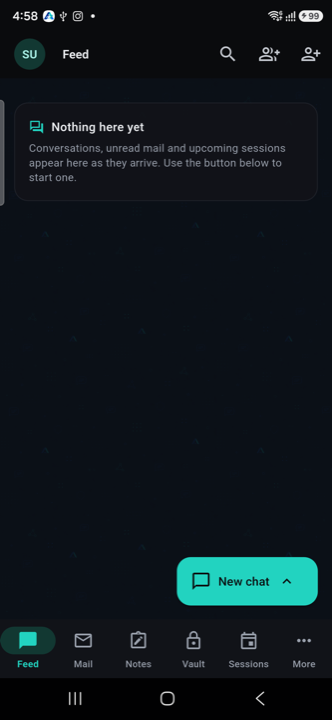
The bottom navigation is where you'll live day to day: Feed, Mail, Vault, Notes, Calls, and More, all backed by a local, cryptographic identity generated on first launch.
Contacts & Reach Contracts
There's no open inbox by default. Every sender needs an explicit, scoped, revocable permission — a Reach Contract — before a message is delivered.
Adding a contact
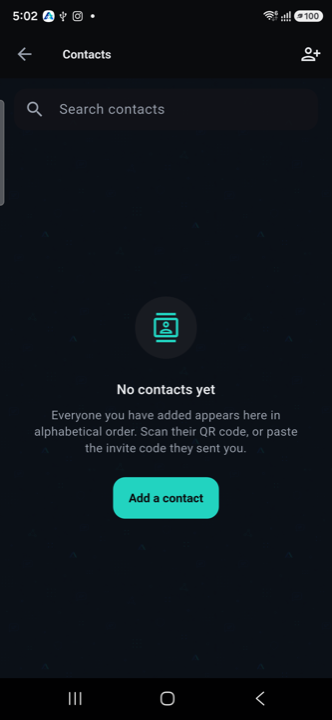
1. Start from an empty list. A fresh identity has no contacts. Tap the add-contact icon (or the Add a contact button) to begin.
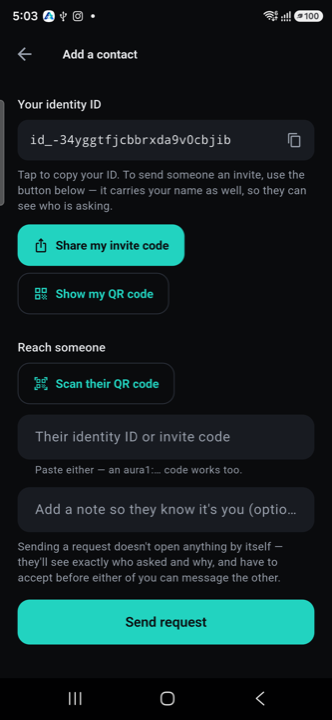
2. Reach someone. Share your invite code or QR code, or scan / paste theirs, then tap Send request. Sending a request doesn't open anything by itself — they see exactly who asked and why, and have to accept before either of you can message the other.
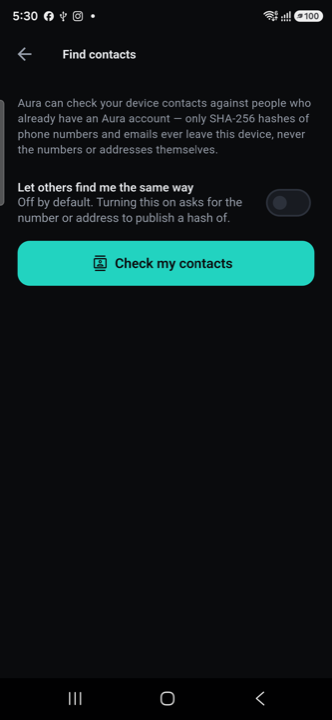
3. Or find people already in your phone contacts. Turning on Find contacts checks your address book against other Aura users — only SHA-256 hashes of numbers and emails ever leave the device, never the contacts themselves.
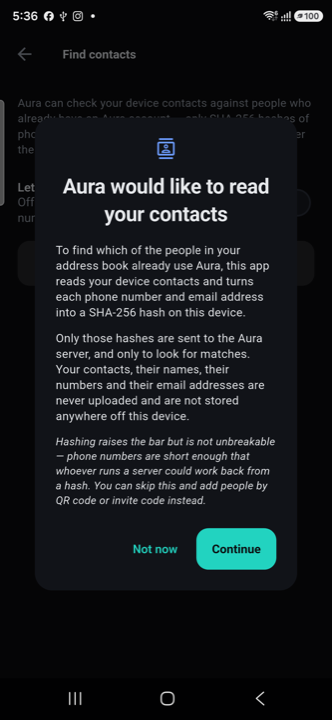
4. Android asks first. The OS-level permission dialog explains exactly what's hashed and sent before you grant it — and you can skip it entirely and add people by QR or invite code instead.
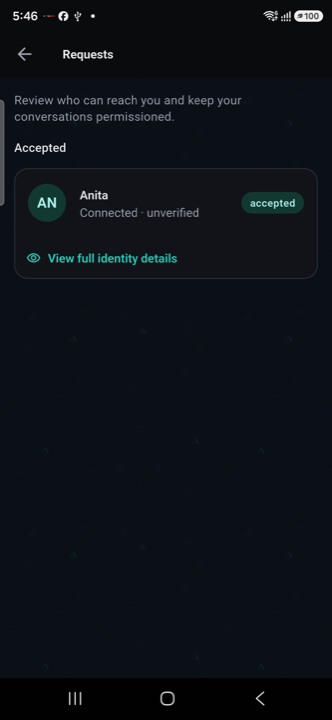
5. Wait for acceptance. Once the other person accepts, they show up as accepted in your Requests list — nothing was delivered to either side before this point.
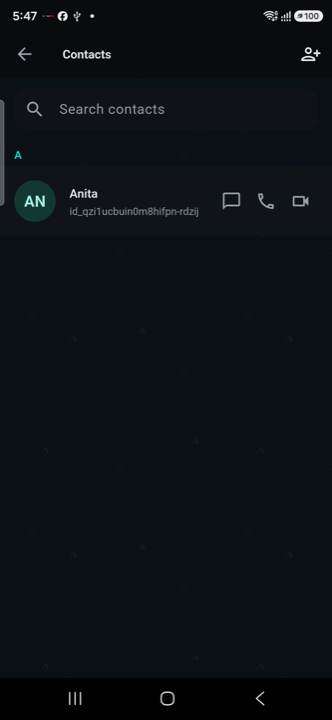
6. They're in your Contacts list, with message, voice-call, and video-call icons right there — no separate step to "unlock" messaging.
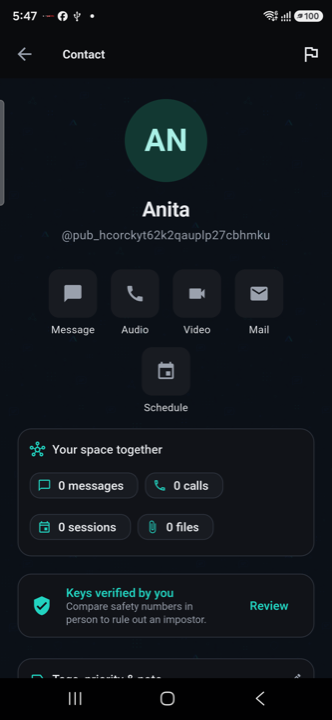
7. Open their profile for the full set of actions — Message, Audio, Video, Mail, Schedule — plus a "keys verified by you" safety-number check.
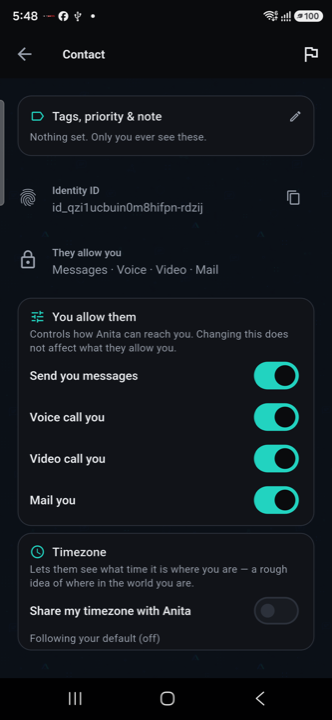
8. Fine-tune what they can do. Per-contact toggles for messages, voice calls, video calls, and mail — changeable any time, and separate from what they allow you.
Chat & groups
One-to-one and group chat with reply-quote, edit, forward, pin, reactions, and disappearing messages that actually delete from the server on expiry.
Messaging a contact
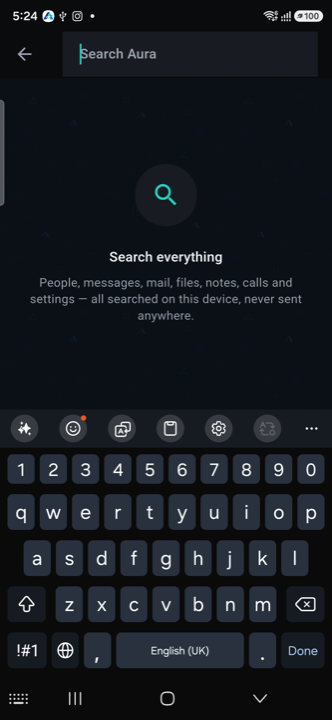
1. Search to jump to a thread — or a contact — instantly. Search covers people, messages, mail, files, notes, calls, and settings, and it's all resolved on-device; nothing you type is sent anywhere. From a contact's profile (see Contacts, above) tap Message to open or start that thread directly.
Inside a thread: send text, photos, or files, and long-press a message to reply-quote, edit, forward, pin, or react. Turn on disappearing messages from the thread menu to have messages expire and delete from the server automatically, not just hide on-device.
Starting a group
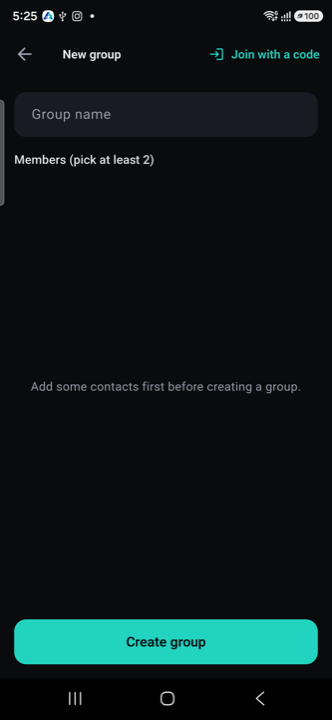
2. Name it and add members. A group needs at least two existing contacts — add some first if your list is empty — then tap Create group for a thread with the same tools plus per-member roles. Have an invite code instead? Use Join with a code at the top.
Aura Mail
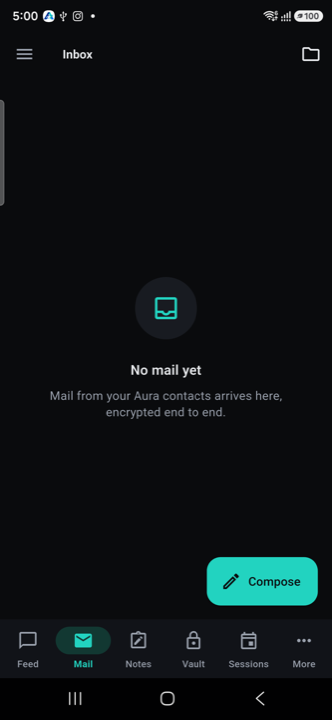
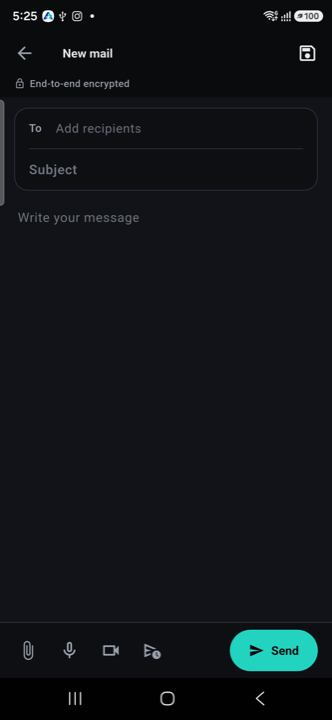
A separate mail-style inbox alongside chat — folders, threaded conversations, drafts, scheduled send, signatures, and filtering rules.
Notes
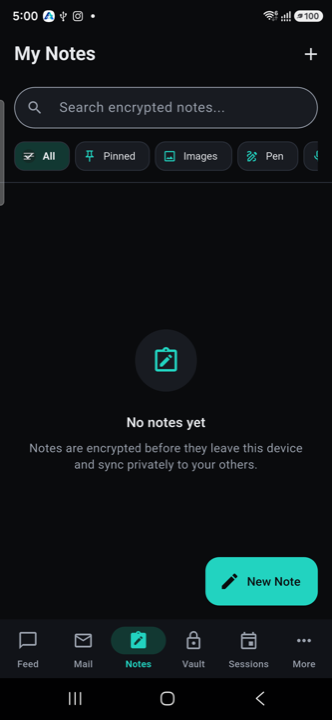
Private notes, synced across your devices — separate from anything shared with a contact.
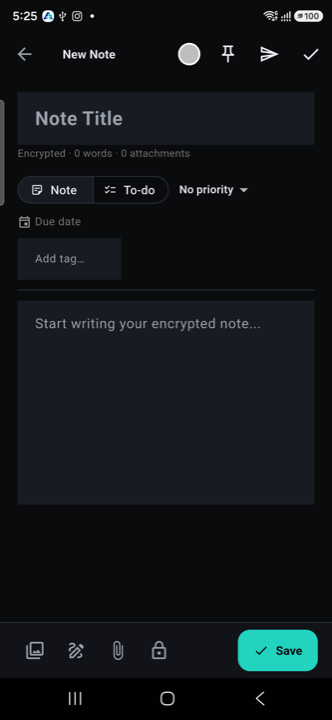
Vault & document scanning
An encrypted, on-device Vault for files, scans, and secure notes, unlocked by its own PIN — separate from device lock.
Opening the Vault
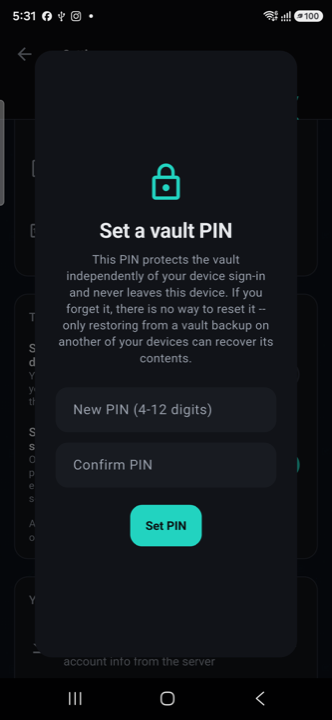
1. Set a Vault PIN the first time you open Vault. It protects the vault independently of your device sign-in and never leaves this device — if you forget it, only restoring from a vault backup on another of your devices can recover its contents, so this is deliberately a bigger commitment than a normal app PIN.
Scanning a document
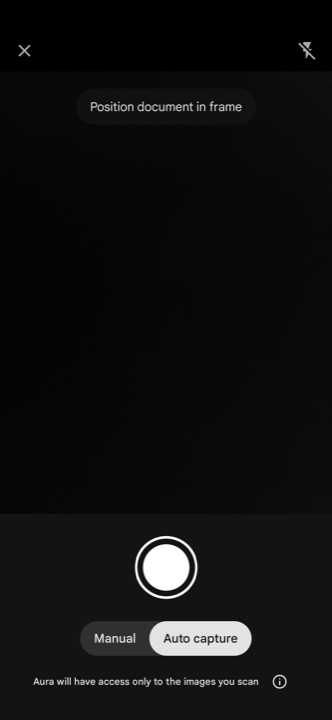
2. Position the document in frame. With Auto capture on, Aura shoots the moment the page is steady; switch to Manual to control the shutter yourself. Add more pages the same way to build a multi-page scan, then the finished pages save straight into the Vault as an encrypted entry — Aura only ever gets access to the images you scan.
Scanning a QR code
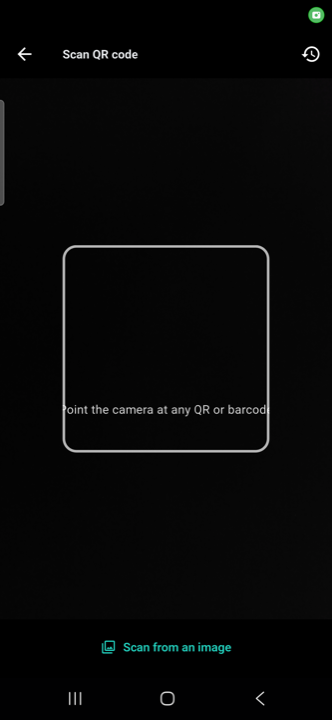
3. Point the camera at any QR or barcode — a Session invite, another device's linking code, or a contact's invite code. No image on hand? Scan from an image reads a QR straight out of a photo instead of the live camera.
Sessions
A scheduled, time-boxed window of access for someone you don't want to add as a permanent contact — a viewing, a sale, a one-off consultation.
Starting a session
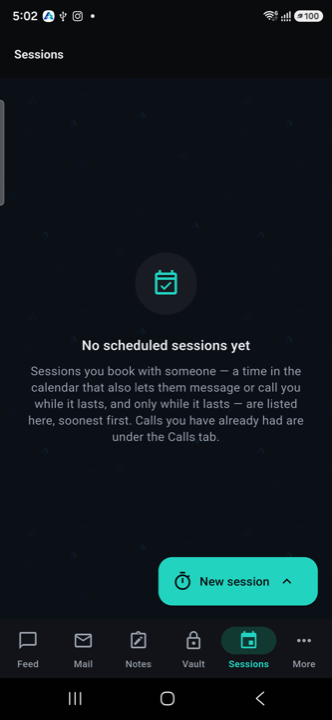
1. Open Sessions from the bottom navigation and tap New session. A session is a time booked with someone that also lets them message or call you — but only while it lasts; calls you've already had live under the Calls tab instead.
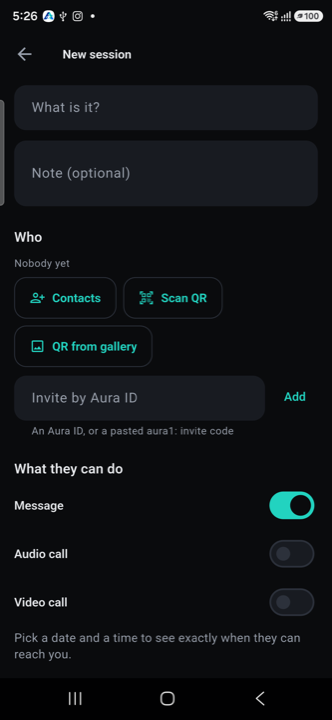
2. Say what it's for and who it's with. Add people from Contacts, by scanning a QR code, or by Aura ID/invite code — no existing contact relationship required. Then choose what they're allowed to do: message, audio call, video call.
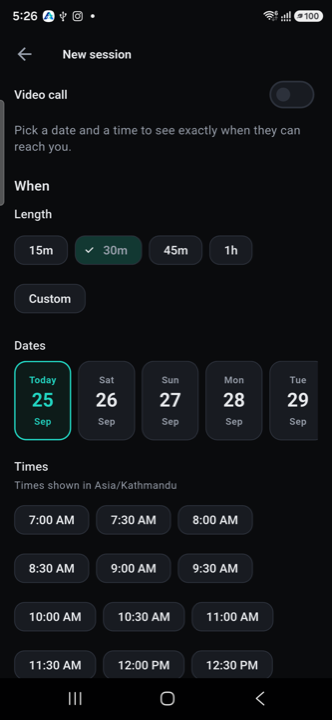
3. Pick a length and a time. Choose a duration — 15m, 30m, 45m, 1h, or a custom length — then a date and time slot, shown in your local timezone. The session grants access only for that window, and can be revoked early with one tap.
Calls
Voice and video, one-to-one and group, peer-to-peer over DTLS-SRTP.
Placing a call
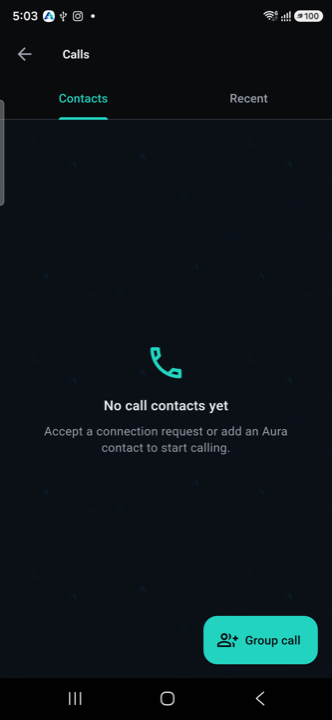
The Calls tab lists your call-capable contacts under Contacts, with past calls under Recent. Tap someone to call them directly — calls can only reach a contact whose permissions allow it — or tap Group call to ring more than one person at once. The quicker path for a single person is the Audio or Video button on their contact profile (shown under Contacts, above).
Business
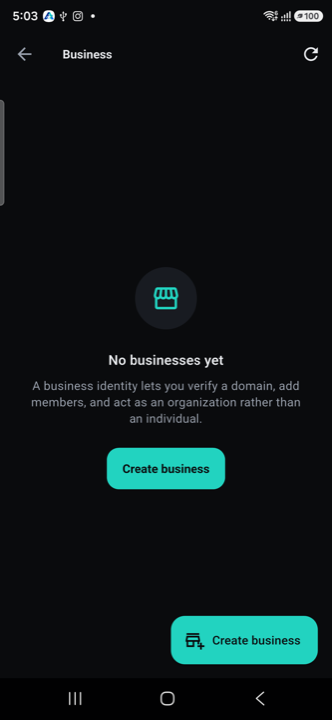
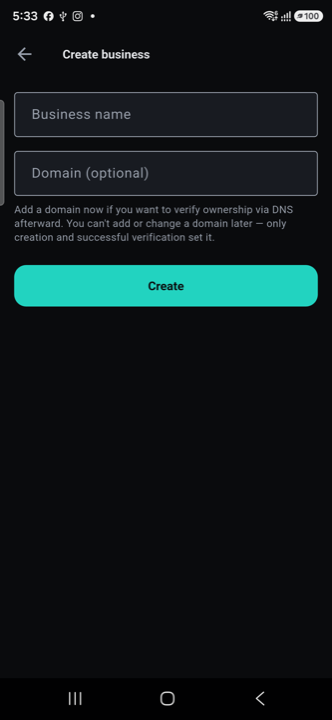
Business accounts get DNS-verified domains, a separate Business Vault, campaigns, and webhooks for pushing events into a business's own systems.
Security & Safety Center
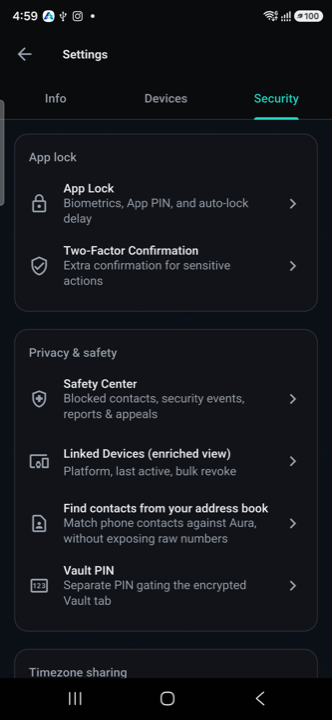
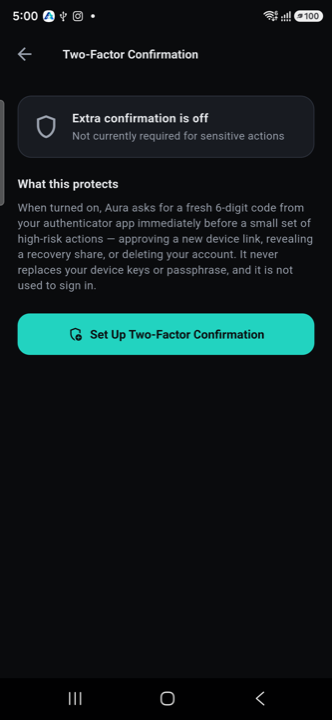
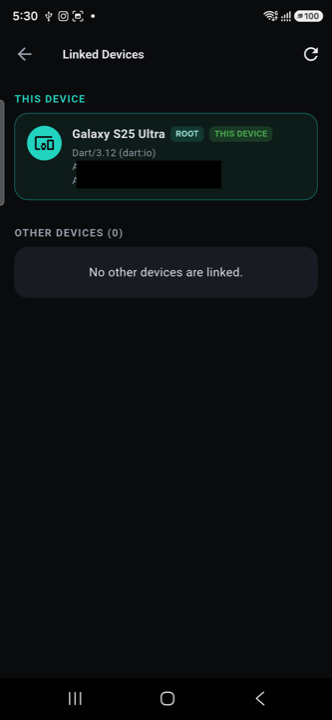
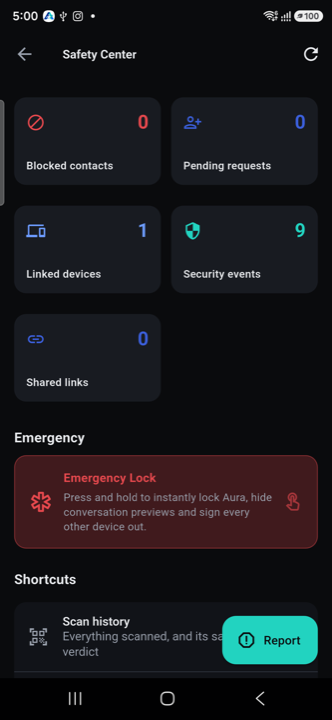
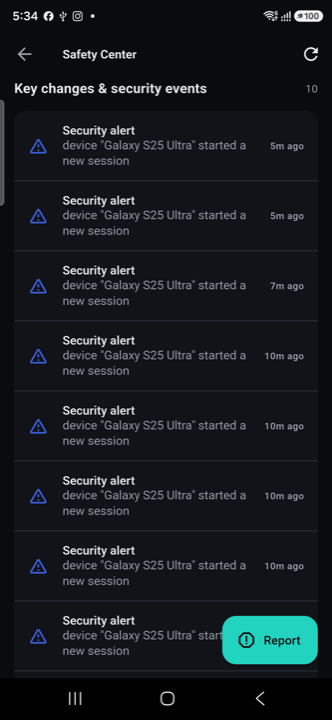
One screen for every linked device, every share link and its expiry, and a plain-language security-event timeline — each with one-tap revoke.
Settings & more
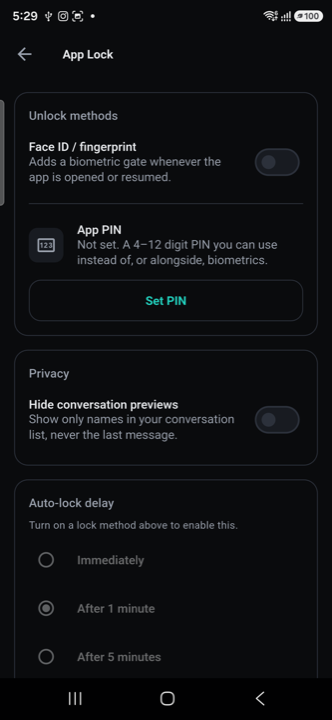
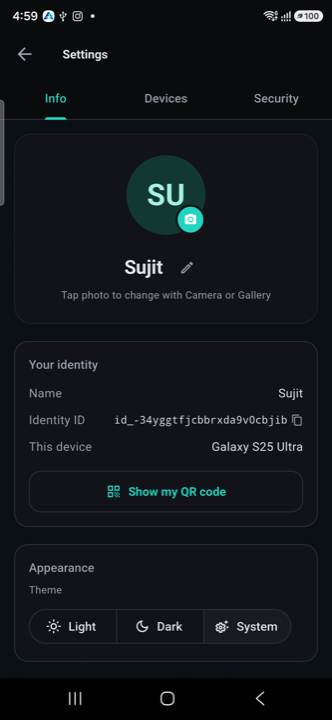
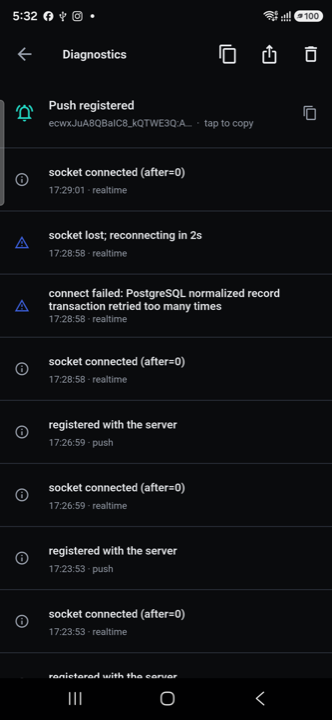
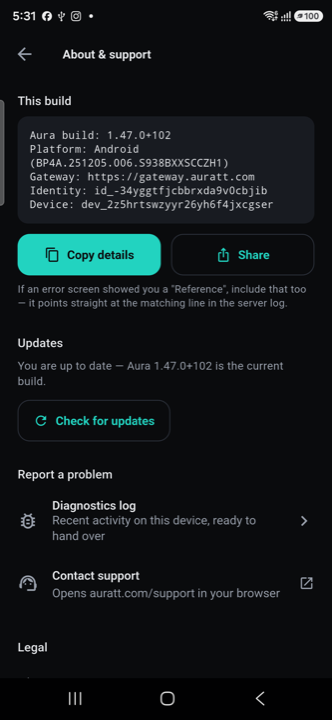
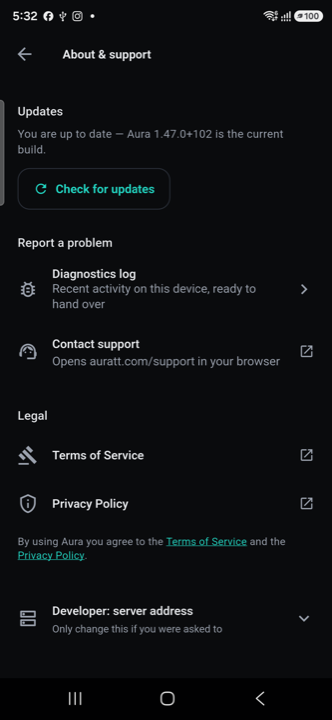
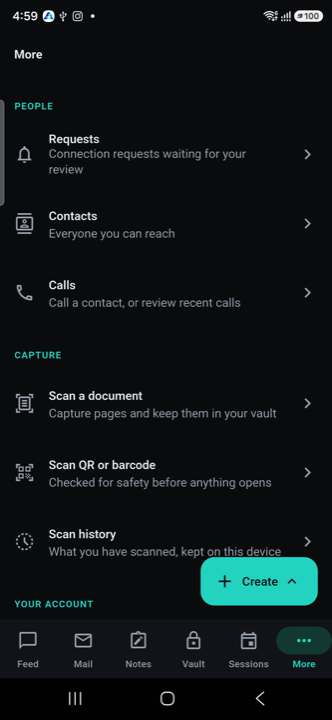
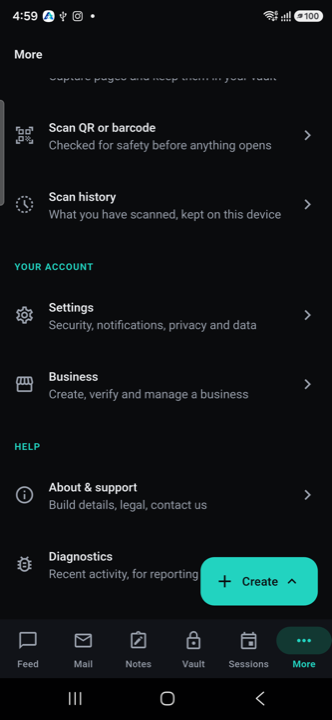
Account details, diagnostics, and the rest of the More menu.
Fixed since launchAll resolved · build 103
These were found through genuine real-device, two-identity testing after build 102 shipped — not from reading the code. All four are fixed as of v1.47.0 (build 103). Full root-cause writeups live in KnownIssues.md in the repo; summarized here for anyone comparing behavior against an older build.
Screenshot protection getting stuck on for the whole app. Opening Vault or a chat thread, then switching away, could leave every other screen screenshot-blocked until a full restart. Fixed by making the protection aware of tab visibility (the same mechanism the floating action button already used for an identical problem), instead of relying only on the widget being disposed.
A "Developer: server address" override reachable in the release build. Any signed-in user could repoint the app at an arbitrary server with no gate — a real identity-interception risk. Now compiled out entirely outside debug builds.
Safety Center flagging routine app restarts as "Security alert." A plain relaunch now reads "New session" with a neutral icon. Genuinely unrecognized event types still default to the alarming style — only the types the app already understands correctly were fixed.
Backend: Postgres write conflicts under a burst of near-simultaneous reconnects. Not a connection-pool issue — an optimistic-concurrency retry budget that was too tight for a reconnect burst. Widened from 8–10 attempts to 20 across all three affected retry loops.